Configuration of Outlook Express to receive and send POP e-mail.
1)
Contact FourMat Technologies to set up and e-mail account on the web server
with the
name that you need.
2)
Connect to the internet through your normal source. If you use AOL, open
up the application
and connect as normal, then minimize the program once connected.
3) Open up the Outlook Express program.
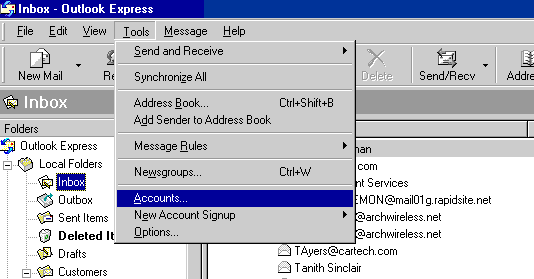
4) Go to Tools>Accounts
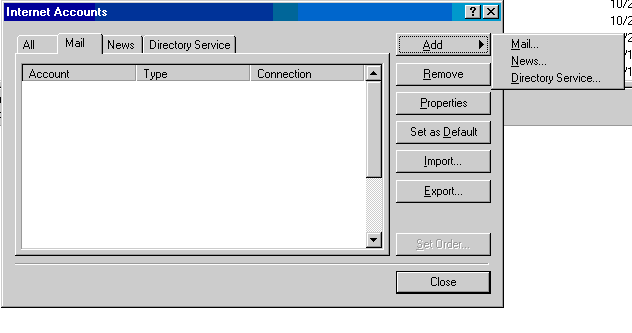
5) Go to Add and select the 'Mail...' tab as shown below
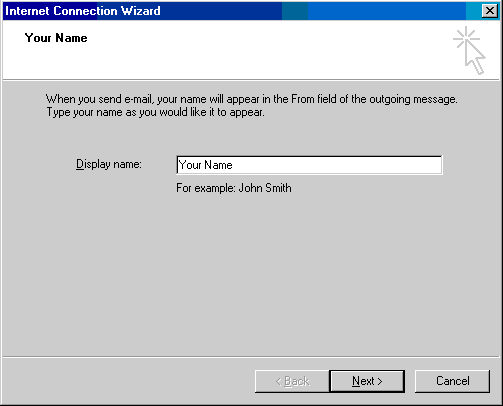
6) Enter your name, or your company name.
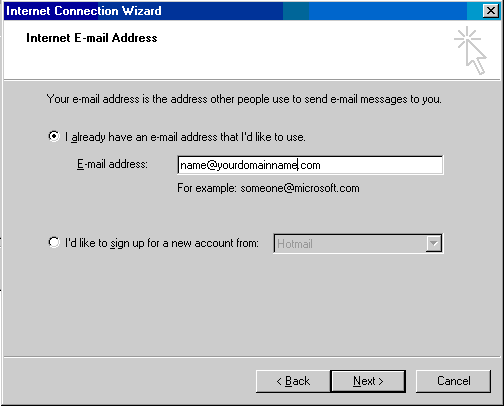
7) Enter your e-mail address, usually name@yourdomainname.com.
8)
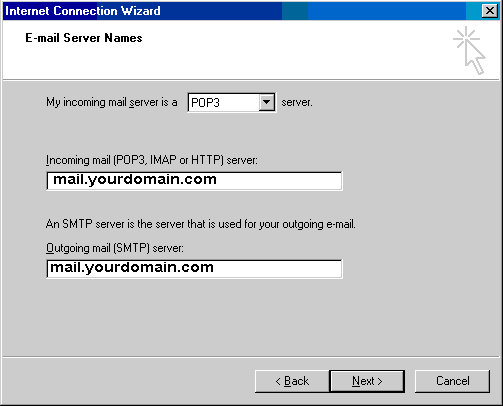
Enter your e-mail server names, as shown below. (Substitute your domain name
in the
appropriate places)
9)
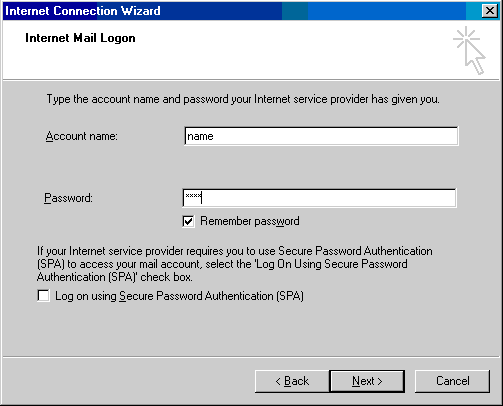
Enter your account name and password. The account name is the same as the name
in your e-mail address. Be sure to select 'Remember Password' unless you want
to
enter it every time you check mail.
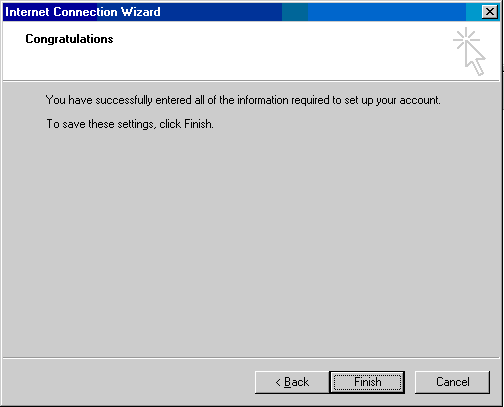
10) You're finished.
11)
Now go back to the main screen and click the 'Send/Receive' button to get your
e-mail.
To test the system, go to 'New Mail' and send yourself an e-mail, wait about
5 to 10 minutes,
and then check it again to see if it works. If it doesn't work, make sure you
have followed the
directions. Go back to Tools>Accounts on the menu. Click the account you'd
like to check,
then click the Properties tab to view your settings.